 PuppyMacro
Guide · PuppyMacro 1.25.0
AI apps
Beta. AI apps in PuppyMacro are new: they work, but they may change, and an AI can get a request wrong. Every change is kept in the item's History, so you can always go back.
PuppyMacro works with the AI apps on your PC that support MCP (Model Context Protocol), like Claude Desktop, Claude Code, Visual Studio Code with GitHub Copilot and Codex. Ask in your own words, for example "in Notepad, make Ctrl+X type A" or "make a macro that opens my inventory and destroys the first 3 items": the AI makes the loop, macro or remap in PuppyMacro, ready to try. The AI and its account are your AI app's: PuppyMacro has no AI of its own.
Set it up
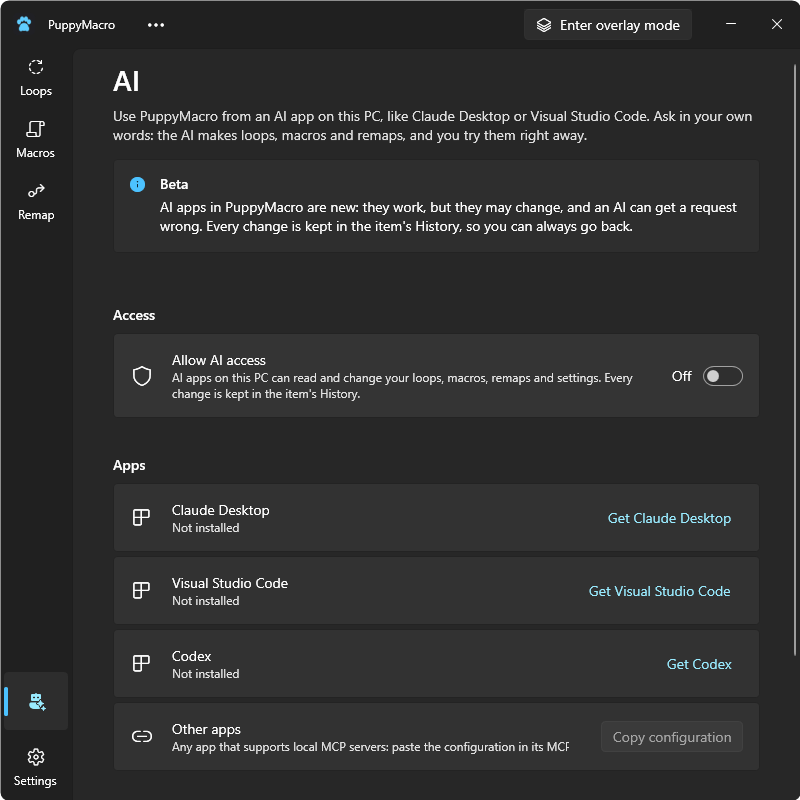
- Select AI in the side rail, above Settings, and turn on Allow AI access. While it is off, AI apps can connect but every request is refused, and the AI tells you to turn it on.
- Under Apps, select Connect on your app:
- Claude Desktop: PuppyMacro is added to Claude Desktop's settings (
claude_desktop_config.json). Restart Claude Desktop: quit it from its icon in the system tray, then open it again. Use the Claude Desktop app: claude.ai in the browser can't reach PuppyMacro. - Visual Studio Code: VS Code opens on the page that installs PuppyMacro's MCP server: select Install there. Then ask in Copilot Chat in Agent mode, with the model you choose there.
- Codex: PuppyMacro is added to Codex's settings (
%UserProfile%\.codex\config.toml). Restart Codex. - Other apps (Claude Code and any app that supports local MCP servers): Copy configuration copies the settings to paste in the app's MCP settings (the usual
mcpServersformat), then restart that app.
- Claude Desktop: PuppyMacro is added to Claude Desktop's settings (
- Once the app has started PuppyMacro's server, its row says Connected since and the time, and the status bar at the bottom of PuppyMacro's window shows its name with a green dot. A Claude app shows "Claude" and the name it gives itself, so its chat, its agent mode and Claude Code read apart, for example Claude (claude-ai); the same name is in Recent activity. Before that the row says, for example, Added. Restart Claude Desktop to connect. Select the status bar to open the AI page.
Remove takes PuppyMacro out of that app's settings. If VS Code's mcp.json has comments, PuppyMacro does not rewrite it: remove PuppyMacro in VS Code with MCP: Open User Configuration. The buttons are off while Allow AI access is off.
What the AI may do without asking
Open Allow AI access (the arrow on its right) to choose:
- Ask before deleting a loop, macro or remap (on): a PuppyMacro window, Asked by the app, asks you first.
- Ask before changing a loop, macro or remap (off): off, the AI's new and changed items are saved at once, ready to try; on, a window shows the changes first, for example Action 2 (Destroy): Delay ms 100 → 250, with Save and Cancel. Enabling and disabling count as changes.
- Ask before changing settings (on): theme, close to system tray, the global hotkeys, the overlay panel, its opacity, clicks in the panel, sound volume.
- Let AI apps see the screen (on): the AI can see pictures of the screen and what a macro's condition reads there, to build macros that look at the screen (below). Off, it gets none: it can still ask you to pick a pixel, an image or an area.
- Let AI apps test macros (on): after you press Start, the AI can play a saved macro to see how it goes. Off, you start macros yourself.
- Start PuppyMacro when an AI app needs it (on): when PuppyMacro is closed, the AI app starts it in the system tray. Off, AI apps can't use PuppyMacro while it is closed: the AI tells you to open it, and suggests Start with Windows or Close to system tray (those that are off) to keep it always available.
Whatever you choose, every change is kept: see History and Activity.
What you can ask
- Questions: which loops, macros and remaps you have, what one does, whether a key or combination is free, how something works in PuppyMacro (the AI reads this guide, of the version you have).
- New or changed loops, macros and remaps: saved as their editor's Save does, with the same checks. To change an item the AI sends only what changes (for example "every delay of 800 ms to 1200"), so even a big macro changes in seconds. One that is running stops when it changes. Then try it: the AI can't start it for you (see below).
- Delete, enable or disable a loop, macro or remap, and change settings.
- Points, apps and keys: instead of guessing, the AI can ask you to click one or more points on the screen (for clicks or moves), to click a window of an app (for Specific app), or to press a key or combination.
- Pixels, images and areas for conditions on the screen: the AI can ask you to pick a pixel, take an image or draw a search area, on a still picture of the screen, as the condition window does.
- See the screen: PuppyMacro takes a picture of each monitor (PuppyMacro's own windows left out); the AI can open it, and take a pixel's color or an image from it itself.
- Check a condition: the AI sees what Now on the screen would say for a condition, on the screen you bring in front, to tune its Tolerance or Similarity.
- Record what you do: PuppyMacro's recorder, with its countdown and its bar with Stop. The AI gets the actions and, around each click, an image it can use to wait for what you clicked and click it wherever it is; a picture of the screen at each of your keys and clicks is kept for it.
- Test a macro: the AI plays a saved macro on the app you bring in front, after you press Start; it stops by itself after 20 seconds unless the AI asked for more, and Stop all stops it. The run's log and a picture of the screen before each step are kept for the AI (see Debug).
- A floating button for a loop or macro in Toggle mode: the AI turns on its floating button and Show in overlay, then opens the screen where you drag the button where you want it and press Enter (Esc cancels, nothing changes).
- Open a loop, macro or remap in its editor, with what the AI wants you to look at on top. What you change there is yours, saved with Save as usual.
- Share: the AI can give you a
.puppyitemsfile with the items you ask for, or import the items of a file you paste, new and disabled, and open PuppyMacro's Import and Export windows (see Share loops, macros and remaps). With several items, it asks which ones first. - Stop all: the AI can stop every running loop and macro.
When the AI needs you on the screen
Before you click points or an app, pick a pixel or an image, before the AI looks at the screen, checks a condition, records or tests a macro, and before you place a floating button, a PuppyMacro window shows in the middle of the screen, on top of everything, what the AI wrote for you: a title, a short description (what it is making and why) and, under Instructions, the steps, numbered, in the language you write to the AI in. Drag it anywhere if it covers what you need. Clicking or dragging it never takes the focus from your game or app: get the screen ready first (open the game's inventory, the window to click), then press Enter or select Start. Enter works from any app and the app does not get it; Esc cancels. Then click the points: next to the cursor a light blue label says which point to click now, with several the bar shows 2 / 3 and a number marks each point clicked. For a key, the window shows the same title, description and steps and waits for the key.
When a recording, a test, a check of a condition or a picture of the screen is over, a Done window says you can go back to the AI app, by the name it gives itself; OK closes it, or it closes by itself after a few seconds.
Every window the AI opens appears in the middle of the screen. When the AI makes a new loop or macro, it asks only what matters for it (how fast, which keys or items), then writes in the chat the exact steps it will play, each key and click and what it does, and waits for your OK before asking for points. Once it is saved, it offers the extras it does not have yet: a hotkey, the overlay and a floating button, a sound, a specific app.
- One request that needs you at a time. A window closes by itself, with nothing changed, when nobody uses PuppyMacro for 5 minutes.
- While you have an editor or a dialog of PuppyMacro open, the AI is told which one it is (for example the macro editor of the macro you are changing) and that its request works once you close it.
- If Windows only flashes a PuppyMacro window in the taskbar, select it there.
What your AI learns: the Library
The AI model itself doesn't remember anything from one conversation to the next. PuppyMacro does: what works in your apps is kept as components in the Library, and AI apps use it. At the start of each conversation PuppyMacro tells the AI app what your Library holds (each collection, its app and how many components) and that what already exists is linked or extended, never made again. Before building a macro, the AI app searches the Library and links the components that already do part of the job (for example how to find a rare item, or where each inventory slot is) instead of making them again; after a new piece works, it can save it as a component, with a name in English it searches by later, and change only the part of a component that needs it. PuppyMacro also tells it to leave nothing behind: when one of its changes stops using a component it made, it uses it again or deletes it, and every change's answer names the components it left unused. A component that a macro or another component uses can't be deleted. Saving or changing a component asks for your OK when Ask before changing a loop, macro or remap is on, and deleting one when Ask before deleting a loop, macro or remap is on; Restore in the AI activity puts it back. So every macro your AI builds makes the next one faster.
What the AI gets, and the debug data
Logs and pictures can be large, and everything an AI app receives stays in its conversation. So PuppyMacro keeps them as files and answers with links to them (MCP resource links): the AI app opens only the files it needs, when it needs them. AI apps that cannot open these links read the files through PuppyMacro instead, which can also give only a part of a picture, a smaller copy of it or some lines of a log; the files themselves never change. Every request of an AI app has its folder in %LocalAppData%\PuppyMacro\debug\ai, by app and by connection: what the app sent, what PuppyMacro answered, and what was captured. In View all of the AI activity, Open debug opens the folder of the request you select. The folders are kept 7 days, then deleted; Settings › Debug data shows how much space they take and deletes them.
What AI apps cannot do
- Start loops and macros on its own: the AI plays a saved macro only as a test, after you press Start with the right app in front, so its keys and clicks never go to the AI app's chat. Loops, and macros for real use, start with the Play button on their card, their hotkey or overlay mode.
- Change Start with Windows, Allow AI access and what it may do, backups and updates.
- Reach PuppyMacro from a website: claude.ai, ChatGPT and other AI apps in the browser or on the phone can't connect to an app on your PC. Use an app installed on the PC.
Activity
Recent activity on the AI page shows the last requests: when, which app, what it asked and how it ended (Saved, Done, Cancelled, Refused…). Restore on a change or deletion made by an AI app puts back what was there before (the row then says Restored). View all opens the AI activity window, with Period, App, Type, Result and Search; select a request to see what was saved, and Restore it. The activity is kept on this PC, the newest requests up to 20 MB; Clear history deletes it.
Privacy
PuppyMacro sends nothing to AI services. What the AI app reads through PuppyMacro (your loops, macros, remaps and settings, the names of the open apps, the points and keys you give, and, with Let AI apps see the screen, pictures of the screen, the colors and texts a condition reads there and the logs of the macros it tests) goes to that app's provider, under its own privacy policy. The images taken for conditions stay in PuppyMacro: the AI gets only their place and size. Pictures and logs reach the AI app only when it opens them. Every request, with what it sent and got, is also kept on this PC for 7 days in the debug data (above), never sent anywhere. Turn off Allow AI access to stop every request.