 PuppyMacro
Guide · PuppyMacro 1.26.0
Conditions on the screen
A macro can look at the screen before it goes on: an If checks one or more conditions, waits for them as you choose, then plays the actions in its Then, or the actions in its Else, or stops the macro. A click inside Then can go where an image or a text was found, wherever it is that time.
Add a condition
- In the macro editor, select where the If goes (as for a new action), then select Condition (the + button next to Action) and choose Pixel color, Image on screen or Text on screen (OCR).
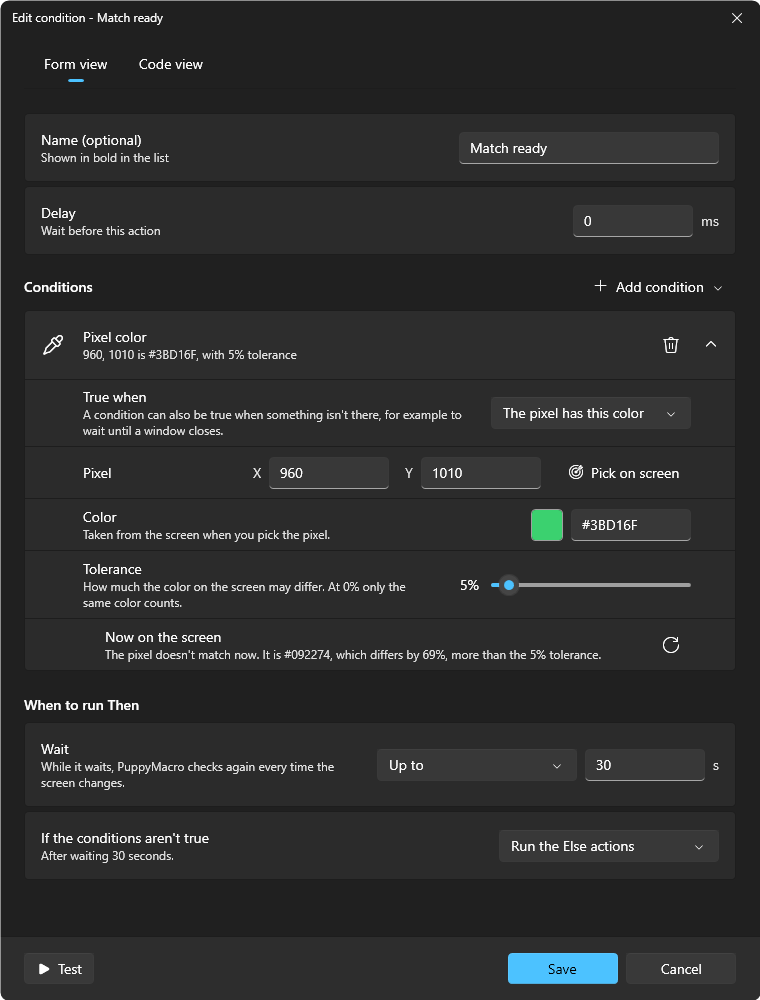
- The condition window opens with that condition. Pick the pixel, take the image or write the text (below), then choose when to run Then.
- Select Save. In the list, the If is a row with Then under it (and Else when the If runs it). Select Then or Else and add actions: they go at its end. You can also drag actions onto them. Alt+Up / Alt+Down at the top or bottom of a Then or Else move the actions out of it, and pass over an If instead of entering it.
Edit, or a double-click on the If or on its Then or Else, opens the condition window again. Add condition in that window adds more conditions to the same If, and each one has Remove condition. An If can be inside another If's Then or Else, and groups work inside them too.
The conditions
- Pixel color: the color of one point of the screen. Pick on screen shows a still picture of the screen with the pixels around the pointer enlarged: click the pixel, and its position and color are taken. Tolerance is how much red, green and blue may each differ (5% by default; at 0% only the same color counts).
- Image on screen: a picture to find. Take on screen shows a still picture of the screen: drag around the image (a button or an icon works best: small, and only what always looks the same), then Take image; Retry removes the rectangle so you can drag again on the same picture. An area all of one color is refused, as PuppyMacro could never find it as an image: check its color with a pixel instead. Take another image adds more pictures: the condition is true when one of them is on the screen (for example the same button lit and unlit). Similarity is how closely the screen must look like the image (90% by default; lower it a little when light or effects change it). It counts in whole percent, as Now on the screen shows it: at 100% the image must be identical. A little bigger or smaller also finds the image from 85% to 115% of its size, and takes longer.
- Text on screen: words, read with Windows' own text recognition, in a Language Windows can read on the PC (Windows language by default; add others in Windows Settings > Time & language > Language & region). Match: Contains the text (also inside longer words) or Exactly these words; Match uppercase and lowercase. Spaces and the punctuation around words do not count. It is slower than an image: use it when the words stay the same but their font, color or background change, and keep the search area small.
Each kind has its strengths. A pixel is the fastest and uses almost nothing, but breaks when the color shifts a little (light, effects, a highlight under the pointer). An image is the most reliable when it is small and distinctive, like a button or an icon; an area of one flat color can't be found as an image (a pixel fits it). A text is the slowest, and reads only the languages Windows has on the PC.
Each condition starts with True when: what it looks for is there (The pixel has this color, The image is on the screen, The text is on the screen, the default) or it is not (The pixel doesn't have this color, The image isn't on the screen, The text isn't on the screen), for example to wait until a window closes or a loading icon goes away. With Up to or As long as it takes, such a condition waits for it to go away. A part of the screen PuppyMacro cannot see (no monitor there any more) never makes it true. It finds nothing, so the actions in Then cannot go where it was found: while one of them does, it stays on "is on the screen".
Image and Text conditions have a Name (for example Accept button), which the actions in Then use. Two conditions of one macro cannot have the same name.
Where to look
- Search area of an image: Around where it was taken (the default: the place it was taken, larger by the image's size on every side, so it still finds the image if it moves a little; the fastest), The whole screen (the monitor where it was taken) or An area I draw (Draw on screen: drag the area, then Use this area, or Retry to drag again). A text has The whole screen or An area I draw.
- When the image or text is found more than once, the most similar one counts; equally similar, the highest on the screen, then the one most to the left.
- PuppyMacro sees the screen as it is shown, also with HDR on: an image taken with HDR off is found with HDR on, and the other way round. Take the image again after changing the screen's resolution or scale, or the app's size.
- The mouse pointer is not part of what PuppyMacro sees, but anything the app draws under the pointer (a highlight, a tooltip) is. If the pointer can cover what a condition looks for, add a Move to elsewhere before the If.
- While a condition looks at the screen, PuppyMacro's own windows are left out of what it sees (on Windows 10 version 2004 or later), and so out of your own screenshots and recordings in that moment and for a few seconds after.
When to run Then
- Conditions (with more than one): All of them are true or One of them is true.
- Wait: Check once, Up to a number of seconds, or As long as it takes (until the conditions are true or you stop the macro). While it waits, PuppyMacro checks again every time the screen changes. The macro's Speed does not change the wait.
- If the conditions aren't true: Run the Else actions or Stop the macro. Stop the macro ends the whole macro: the actions after the If, another If among them, and the next rounds do not play. To go on to the next action instead, choose Run the Else actions and leave Else empty. With Stop the macro, the list shows the If's Else greyed, saying it is not played; actions you had put in it are kept for when you choose Run the Else actions again.
Each condition has Now on the screen, which says what PuppyMacro sees a moment after you change it: Found now at 1812, 1210, 97% similar, how far the pixel's color is, or what text it read. Opening a condition does not check it: until then the card says Not checked yet. Check again (its ⟳ button) checks that condition on the screen as it is now, and Test in the condition window checks all of them, without playing any action. If it sees only black, the app may block screen capture or run in exclusive fullscreen: use its borderless or windowed mode.
When a click or a move does nothing
The If is true and its Then plays, but the mouse does not move or click: the app in front probably runs as administrator (Task Manager usually does, and so do many installers and some games). Windows then drops the keys and the mouse input PuppyMacro sends, without any error. Bring another app to the front, or run PuppyMacro as administrator too (see Good to know).
Click where it was found
Inside Then, a Click, Mouse button down, Mouse button up or Move to has a Position list: Fixed point, with its Point under it, or Where … was found for each Image or Text condition of the Ifs around it (not those true when it isn't on the screen). It then goes to the center of what that condition found this time, moved by Move from the center (pixels to the right and down; negative numbers go left or up). With One of them is true, an action that goes where a condition that was not found is skipped. Moved out of that If's Then, the action can't be saved until it goes back inside or gets a fixed point.
Examples
- Wait for a button, then click it: an If with an Image condition of the button, Up to 10 seconds; in Then a Click with Position Where … was found. It clicks the button wherever it shows up, as soon as it shows up.
- Repeat until something happens: the macro on Loop, its actions first, then an If that checks once whether the thing happened (for example a "Done" text) with True when … isn't on the screen and Stop the macro: while it isn't there the macro goes on with the next round; when it shows up the macro stops.
- Several checks in a row: each If on Run the Else actions, with Else empty when nothing has to happen, so the macro goes on to the next If.
- Wait until something goes away: a condition with True when … isn't on the screen (a loading icon, a window), As long as it takes.
Checks per second
A macro with an If has Checks per second in the editor: how many times a second its conditions look at the screen while they wait (10, 30 by default, 60, or Every frame). Fewer checks leave more of the computer to other programs, more checks notice a change sooner. The macro's duration in the editor shows the shortest and the longest time, or "or more" when a condition waits as long as it takes.
Screen recognition
Settings > Screen recognition > Look for images with: Automatic (the graphics card for large areas, the processor for small ones, usually the fastest), Graphics card or Processor.
Images and your data
The images of the conditions are kept in the images folder of the data folder, are in every backup and go with the macros you share. An image no macro uses any more is deleted when a macro is saved; the History keeps a copy, so Restore this version brings it back.