 PuppyMacro
Guide · PuppyMacro 1.26.0
Remap
Press a key, a mouse button or a combination and PuppyMacro sends another one instead. Remaps work while PuppyMacro is running, also in the system tray. Select Add remap on the Remap page.
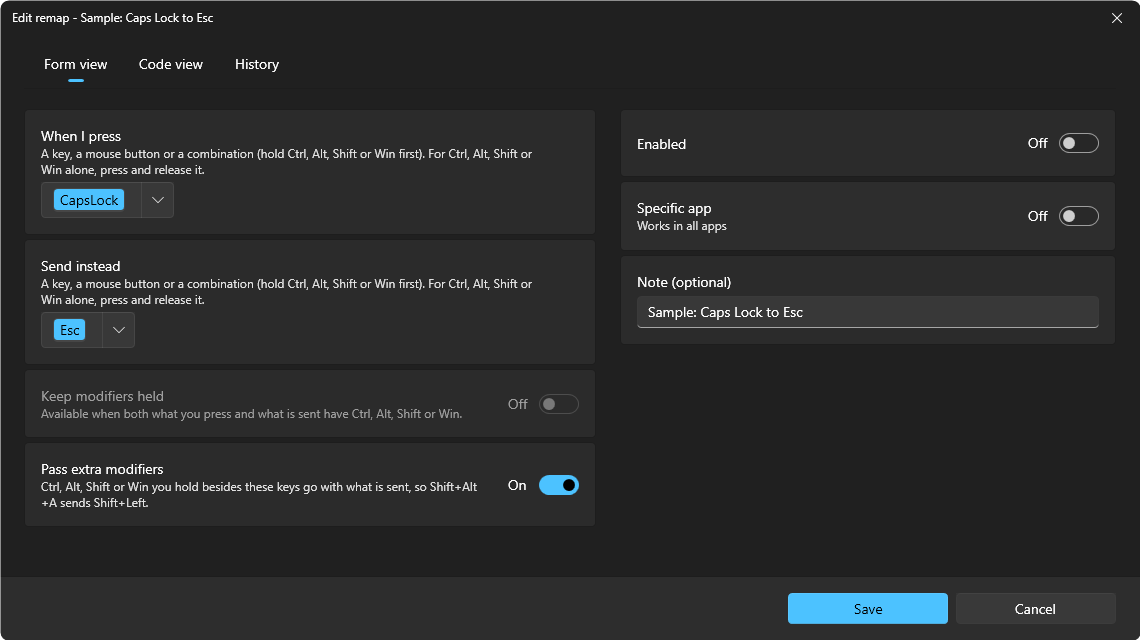
- When I press: select Set key and press a key or mouse button, or a combination: hold Ctrl, Alt, Shift or Win first, for example Alt+J (Esc cancels). To remap Ctrl, Alt, Shift or Win itself, press it and release it alone, for example the right Alt. The keys are then shown in the accent color: click them to choose others, or use the arrow next to them to choose the side of each Ctrl, Alt, Shift and Win (see Hotkeys).
- Send instead: a key, a mouse button or a combination (hold Ctrl, Alt, Shift or Win first), or Ctrl, Alt, Shift or Win alone, chosen the same way. A modifier in what is sent is pressed on the side chosen; with Left or right, the left one.
- Specific app: off, the remap works in all apps. Turn it on and choose the app as for a loop: from the list of running apps, with Pick (click a window of the app) or with Browse… (its .exe). The remap then works only while that app is in front. A remap for the app in front wins over one for all apps.
- A remap's keys cannot be a global hotkey, nor the hotkey of a loop or macro for the same apps (both for all apps, or both for the same app). One for a specific app and one for all apps can share the keys, whichever is the remap: in that app the one for the app works, in the other apps the one for all apps (see Hotkeys).
- Enabled: the same switch as on the remap's card.
- Note (optional): a reminder, shown on the remap's card.
- A remap of Alt+J never changes J alone: what you press must have at least its Ctrl, Alt, Shift and Win. With more of them held, it depends on Pass extra modifiers (below). A remap of J and one of Alt+J can both exist: the one whose keys are exactly what you press always wins.
- Pass extra modifiers: the remap also works when you hold other Ctrl, Alt, Shift or Win besides its keys, and those reach the app with what is sent, as if you held them on the real key. With Alt+A → Left, Shift+Alt+A sends Shift+Left (selects) and Ctrl+Alt+A sends Ctrl+Left (the word before). Only the remap's own Ctrl, Alt, Shift or Win are released for the app; the others stay as you hold them. A remap, a loop, a macro or a global hotkey whose keys are exactly what you press always wins over it. It is on for every new remap; remaps made with an earlier version have it off, so they keep working as before. Turn it off and only the exact keys work. It is off and greyed out when what you press is Ctrl, Alt, Shift or Win alone: there is nothing else to pass.
- With a combination as the key pressed, for example Alt+J → Left, the app gets only Left: PuppyMacro releases Alt for the app first. While you keep Alt held, the app sees it released, so another key pressed before you let go of Alt arrives without Alt. Pressing J again with Alt still held sends Left again.
- Keep modifiers held: when both what you press and what is sent have Ctrl, Alt, Shift or Win, for example Ctrl+Tab → Alt+Tab, the Ctrl, Alt, Shift and Win sent stay held for as long as you hold yours, as if you held them yourself. So with Ctrl held, each Tab moves to the next window in the Alt+Tab switcher, Shift+Tab goes back, and letting go of Ctrl opens the window chosen. With two or more of yours, letting go of any one of them releases all those sent. Another key pressed meanwhile, for example C, ends it: PuppyMacro releases what it sent and gives your Ctrl back first, so the app gets Ctrl+C. It is on for every remap at first; turn it off and what is sent is released with its key, as in the line above. When what you press or what is sent has no Ctrl, Alt, Shift or Win, the option is off and greyed out: there is nothing to keep held.
- Ctrl, Alt, Shift or Win remapped alone (for example the right Alt → Enter) is no longer that modifier while the remap is on: it does not count for combinations or hotkeys. On keyboards where the right Alt is AltGr, it does not type the AltGr characters while it is remapped. A remap of Win alone does not open Start.
- Ctrl, Alt, Shift and Win sent by a remap (for example Caps Lock → Ctrl) reach the app, but they do not count for PuppyMacro's own hotkeys: those read only the keys you really press.
- Left and right click alone can be remapped only for a specific app.
- Code view, at the top of the window, shows the remap as JSON, as it is saved, in a code editor with suggestions and checks; see Macros > Code view. History, next to it, lists its saved versions and restores any of them; see Macros > History.
The Remap page shows the remaps as a List at first, or as a Table or a Grid (the buttons at the end of the search box's row, as on the Loops page). Each remap shows its note (or its keys when it has none), its state (Enabled or Disabled) and its keys, for example CapsLock → Esc or Left Alt J → Left; the table has the columns Note, From, To, Works in and State. In the list and the grid the remaps for a specific app are grouped under its name. Click a remap to open its editor. Its buttons: More options (⋯) with Edit, Duplicate, Export, Move up, Move down and Delete, then the switch that enables or disables it. A duplicate starts disabled, ready to be changed. A remap imported while its hotkey was already taken shows No hotkey yet instead of its keys (point at it: Open it and choose a hotkey to turn it on.); its switch stays off until you open it and give it one. Search and the filter (All remaps, Enabled, Disabled) help with long lists.